
Hosted by site sponsor WebMate.
MacBook Neo Q&A
Published April 27, 2026
All Mac Q&As >> MacBook Neo Q&A (Home)
To be notified of new Q&As, sign up for EveryMac.com's bimonthly email list.
What version of the macOS is pre-installed on the MacBook Neo?
The MacBook Neo first shipped with macOS Tahoe (macOS 26), specifically macOS 26.3.1 (25D2128). Upon first boot, it prompted the user to immediately upgrade to macOS 26.3.2 (25D2140).
How do you transfer data from an older Mac to setup a MacBook Neo?
Just as Apple explains for other recent Macs, Apple has made it straightforward to transfer data from an older Mac to a new MacBook Neo for initial setup using the "Migration Assistant" application:
- Connect both systems to the same Wi-Fi network, which is easiest, but may take hours depending on the amount of data to transfer and the speed of the network connection.
- Connect a Time Machine backup of your older Mac stored on an external USB hard drive to your new MacBook Neo. If your backup drive is fairly old and only equipped with a USB-A port, you will need to use a USB-C to USB adapter to connect the older drive to the new MacBook Neo.
Apple's own support site provides detailed instructions that should be reviewed before attempting to transfer data. As a precaution, EveryMac.com always recommends that you create an extra backup of your older Mac before attempting to transfer any data between systems.
How do you restore the operating system on the MacBook Neo?
Like all other Macs for many years now, Apple does not include a physical restoration method for the MacBook Neo.
Instead of including a recovery operating system on a USB stick, the operating system on the MacBook Neo uses a built-in "macOS Recovery" function.
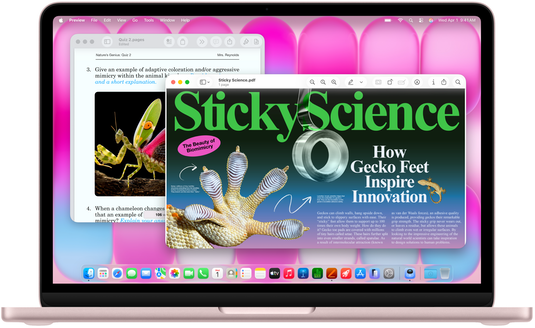
Photo Credit: Apple, Inc. (MacBook Neo)
To access macOS Recovery, simply boot your Mac and continue to press and hold the power button. Momentarily, a window with startup options will appear. Click the "Gear Icon" listed as "Options" then select Continue to start the recovery process.
Additional details about "macOS Recovery" is available on the Apple Support Site.
Does the MacBook Neo run the same operating system as the iPad?
No. The MacBook Neo runs macOS Tahoe (macOS 26) and later.
Although there are a variety of similar technical underpinnings, the iPad runs a different operating system called iPadOS. At least for now, there is no way to boot the iPadOS directly on Mac hardware.
Can the MacBook Neo run iPad apps?
Yes, for the most part. The MacBook Neo does not run the iPadOS, but it is capable of running the majority of apps written for the iPad unmodified (unless the developer opts-out). Better developers may tweak their apps to be a bit more "Mac like" as well.
Can the MacBook Neo run Windows?
The MacBook Neo cannot boot into Windows directly. However, it is capable of running Windows via virtualization using software like Parallels Desktop and VMWare Fusion.
Regarding its performance on the MacBook Neo, after initial testing, Parallels stated:
For light, occasional Windows use, like a legacy business tool, or a Windows-only utility, MacBook Neo may provide an acceptable experience. For CPU- or GPU-intensive Windows applications, this computer is not the right choice.
Parallels later removed much of the page, including the wise suggestions about 16 GB of RAM or more providing a better experience, and boasted:
Windows running in a Parallels virtual machine on MacBook Neo delivers approximately 20% higher single-core CPU performance compared to Windows running natively on a higher-priced Intel-based laptop, making it an excellent choice for office productivity workloads.
Although the marketing may have shifted somewhat since the initial release of the MacBook Neo, most users would be best served with a Windows notebook -- or at least a faster Mac notebook with more RAM -- if Windows performance is important.
Permalink | Report an Error/Typo | Sign Up for Site Update Notices
Established in 1996, EveryMac.com has been created by experts with decades of experience with Apple hardware. EveryMac.com includes, and always has included, original research incorporating detailed, hands-on inspection of packaging, computers, and devices as well as extensive real-world use. All information is provided in good faith, but no website or person is perfect. Accordingly, EveryMac.com is provided "as is" without warranty of any kind whatsoever. EveryMac.com, and the authors thereof, shall not be held responsible or liable, under any circumstances, for any damages resulting from the use or inability to use the information within. For complete disclaimer and copyright information please read and understand the Terms of Use and the Privacy Policy before using EveryMac.com. Copying, scraping, or use of any content without expressed permission is not allowed, although links to any page are welcomed and appreciated.